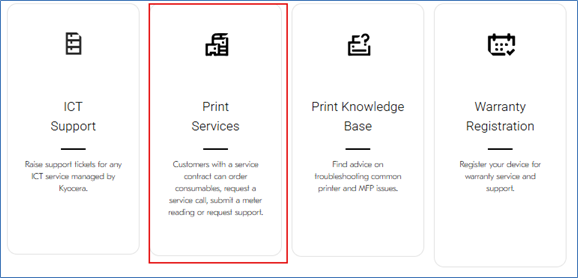
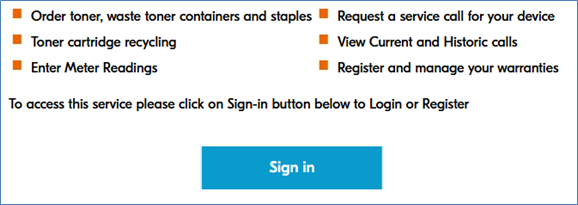
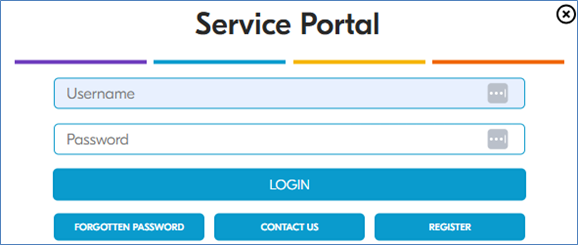
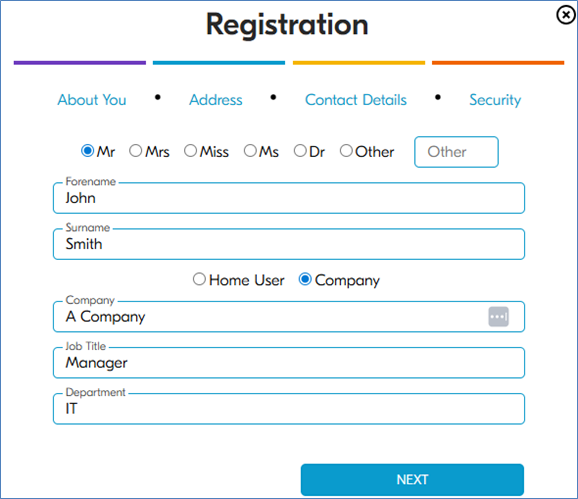
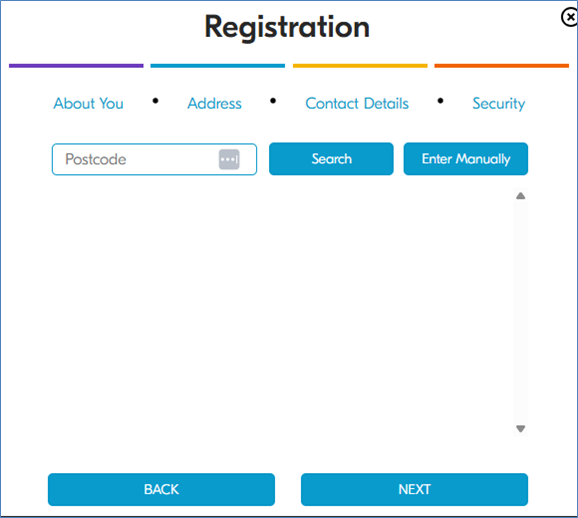
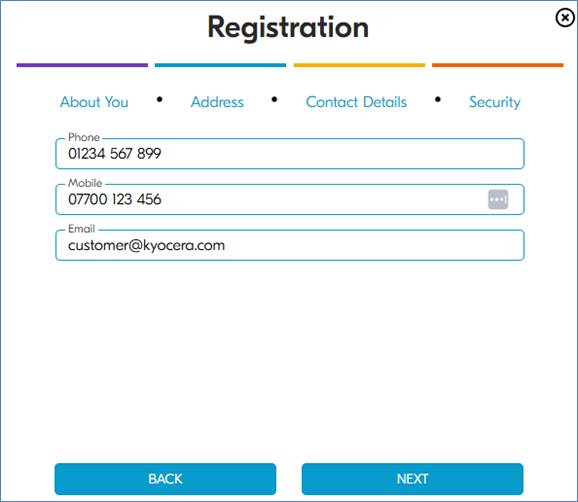
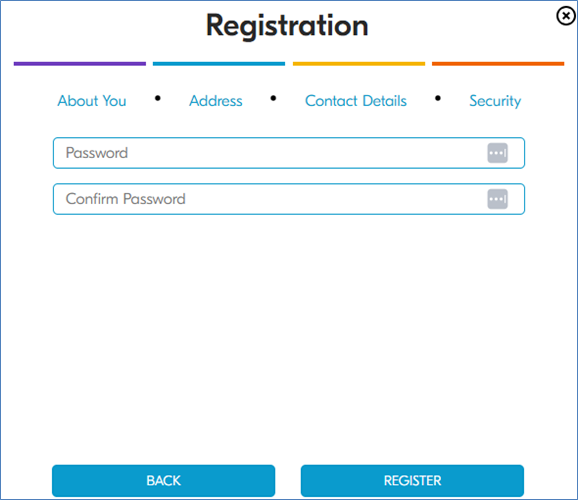
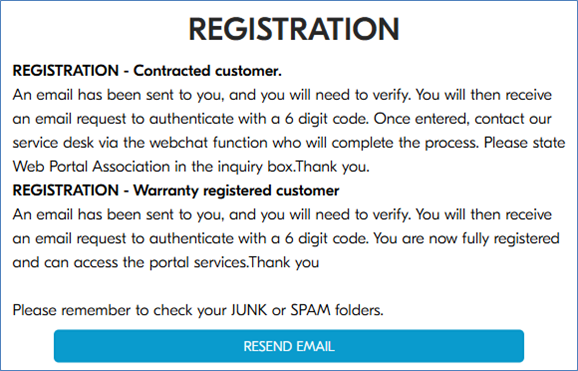
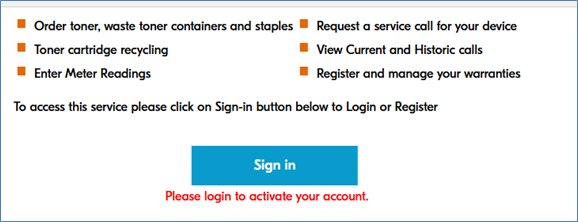
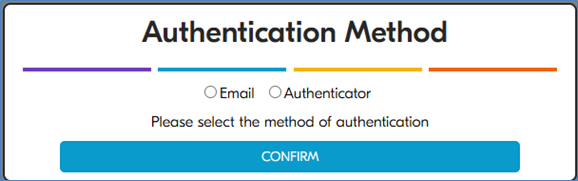
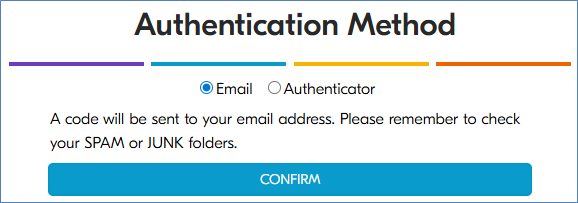
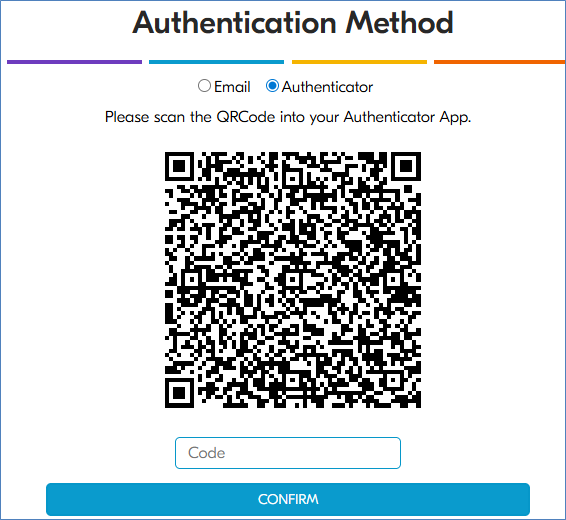
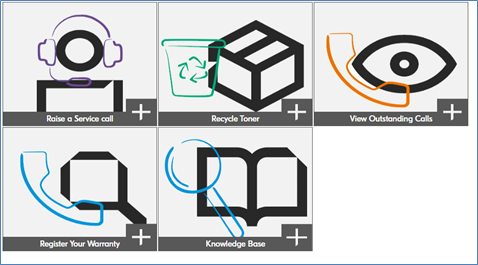
< All Topics Main FAQ Kyocera Service Portal – User Registration Guide Print Updated03/02/2026 This guide provides step-by-step instructions to help you register and access the Kyocera Service Portal. 1. Accessing the Service Portal Go to https://kyoceraservice.co.uk and select **Print Services**. 2. Starting the Registration Process Click on the **Sign In** button, then select **Register**. 3. Entering Your Details Complete all required fields on the registration form. Ensure your information is accurate before proceeding. 4. Creating Your Password Choose a secure password and click **Register** to continue. 5. Email Verification You will receive a verification email from **noreply@duk.kyocera.com** with the subject “Email Verification for Kyocera Service Portal.”Open the email and click the verification link to confirm your account.. 6. Authentication Options – If you choose **Email Authentication**, check your inbox for the verification code. Delivery may take a few minutes. – If you choose **App Authentication**, scan the QR code using your authentication app and enter the code provided. 7. Logging In Once verified, log in using your username and password. After logging in, the services available to you will be displayed on your home screen. If you encounter any issues whilst registering, please connect to one of our live agents via webchat at https://print.kyoceraservice.co.uk/ or email support@duk.kyocera.com